
 By Keven Galolo
You open Chatblink and the page refuses to load. Or it loads, but chats won’t connect. Maybe you can log in, but messages don’t send.
When that happens, most people immediately assume Chatblink is down. In reality, full platform outages are far less common than local browser or network issues. The key is to diagnose the problem in the right order — starting simple, then moving deeper only if needed.
Work through the steps below from top to bottom. Stop when the issue is resolved.
Key Points
- Most cases where Chatblink is not working are caused by local browser or network issues, not server outages.
- A hard refresh, cache clearing, or browser switch often resolves loading problems.
- VPNs, extensions, and router-level conflicts commonly block chat scripts.
- Testing across devices and networks confirms whether the issue is local or server-side.
- Methodical troubleshooting prevents unnecessary assumptions about outages.
1. Do a Proper Hard Refresh
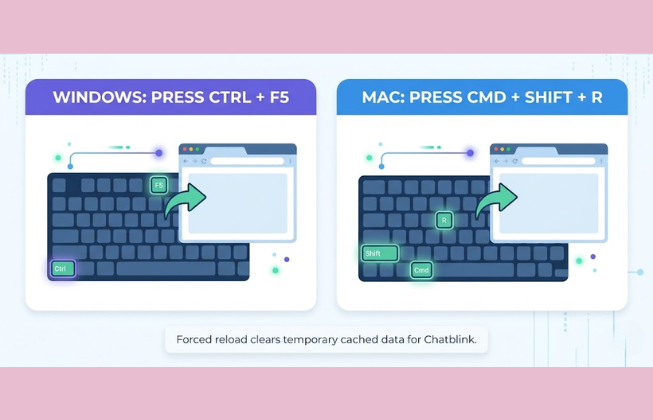
A standard refresh may not reload all scripts. A hard refresh forces your browser to fetch fresh files from the server instead of using cached versions.
On Windows, press Ctrl + F5.
On Mac, press Cmd + Shift + R.
If Chatblink loads normally after this, the issue was temporary cached data.
2. Close the Browser Completely
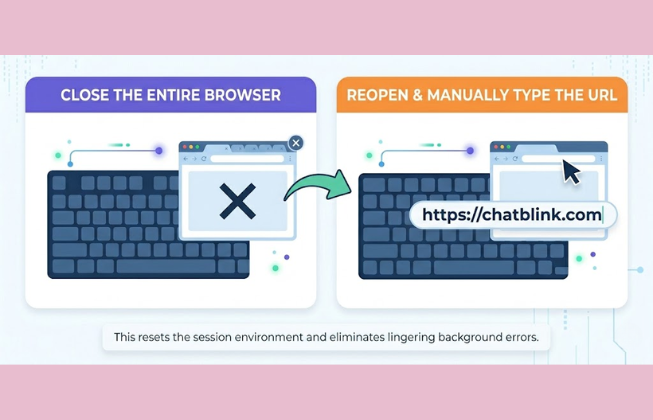
Sometimes the session itself becomes unstable. Instead of refreshing repeatedly, close the entire browser window — not just the tab — and reopen it.
Then manually type the Chatblink URL into the address bar. This resets the session environment and eliminates lingering background errors.
3. Verify Your Internet Connection Properly
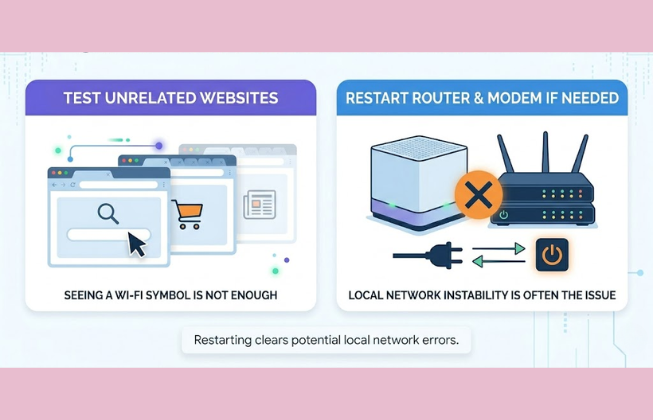
Seeing a Wi-Fi symbol does not guarantee stable connectivity. Test your connection by opening two or three unrelated websites.
If other sites are slow or fail to load, restart your router and modem. If Chatblink works immediately after a router restart, the issue was local network instability — not Chatblink down.
4. Switch to Mobile Data
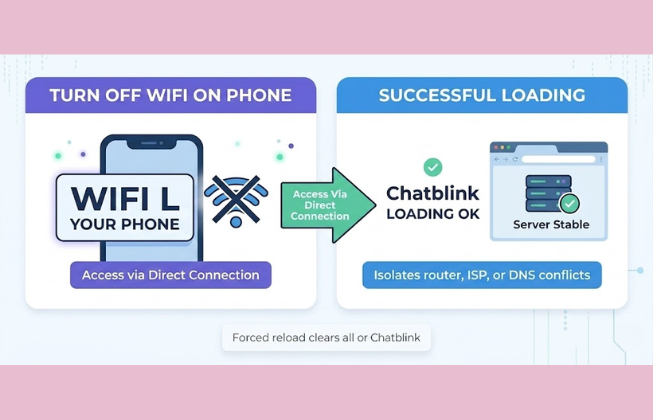
This is one of the fastest ways to isolate the problem.
Turn off Wi-Fi on your phone and access Chatblink using mobile data. If it loads normally, your home or office network is the source of the problem.
Router-level firewalls, DNS conflicts, or temporary ISP routing issues often create the impression that Chatblink is not working when the platform itself is operating normally.
5. Try a Different Browser
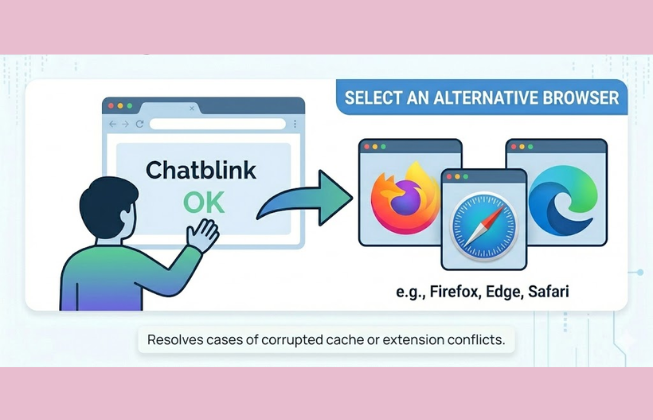
Browsers store cookies, scripts, and extensions that can interfere with dynamic platforms like chat systems.
If you’re using Chrome, try Edge or Firefox. If you’re on Safari, try Chrome. If the issue disappears in another browser, the original browser likely has corrupted cache data or an extension conflict.
This step resolves many cases where users search why Chatblink is not working.
6. Clear Cache and Cookies
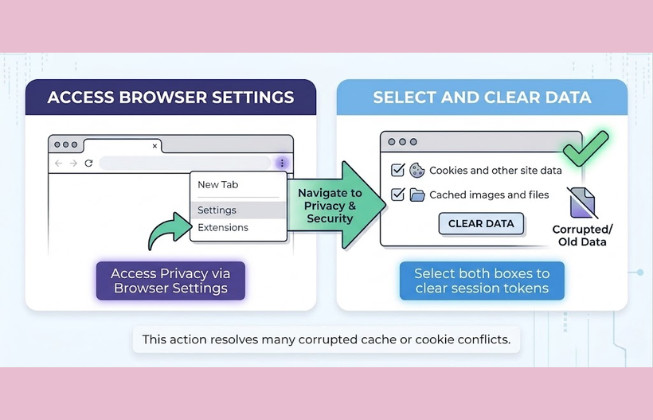
Chat platforms rely heavily on session tokens stored in cookies. If those become corrupted or expire improperly, login loops and blank pages can occur.
In Chrome:
- Click the three-dot menu
- Go to Settings → Privacy and Security
- Choose Clear browsing data
- Select Cookies and Cached images/files
- Restart the browser completely
After clearing, reopen Chatblink and test again.
7. Disable Extensions Temporarily
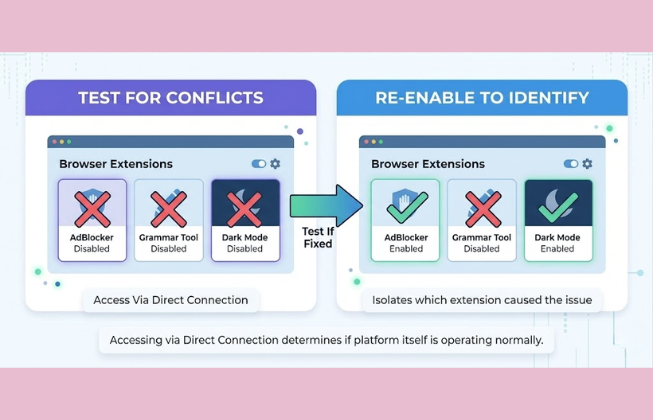
Ad blockers, script blockers, privacy tools, and VPN browser extensions can prevent Chatblink from loading essential scripts.
Open an Incognito window. Most extensions are disabled by default there. If Chatblink works in Incognito mode but fails in your regular browser window, an extension is blocking it.
Disable extensions one at a time to identify the cause.
8. Turn Off VPN or Proxy Services
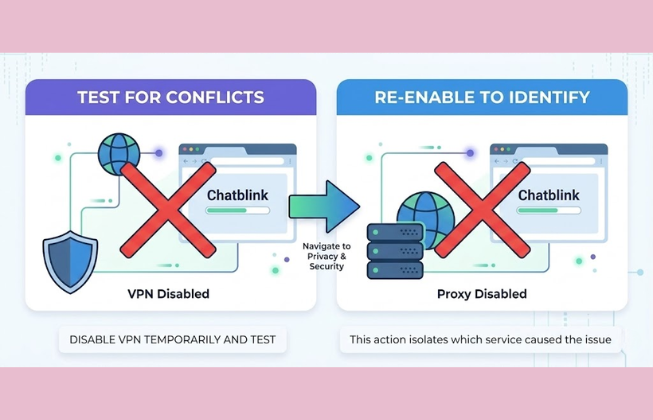
VPN services sometimes trigger automated security filters, especially on platforms that monitor unusual traffic patterns.
If Chatblink loads slowly, repeatedly logs you out, or shows access errors while a VPN is active, disable it temporarily and test again. If the issue disappears, the VPN connection was interfering.
9. Restart Your Device
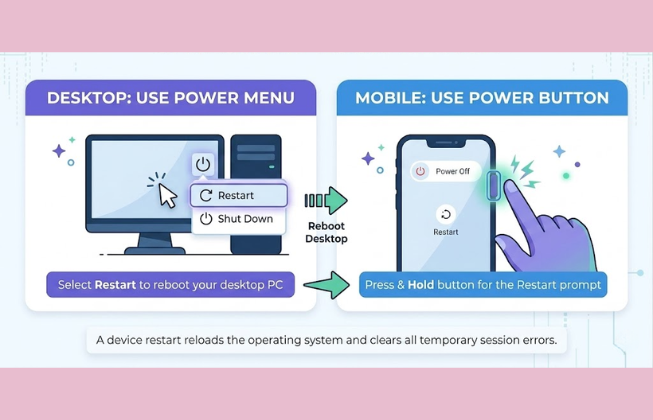
Temporary memory conflicts and background processes can disrupt browser behavior. A full system restart clears active network sessions and resets local processes.
If Chatblink works normally after rebooting, the issue was device-level — not a server outage.
10. Confirm It Fails Across Multiple Devices and Networks
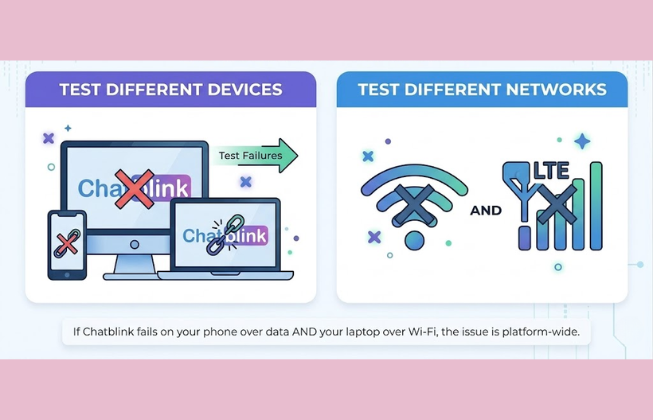
Now we test whether Chatblink is truly down.
If Chatblink:
- Fails on Wi-Fi
- Fails on mobile data
- Fails on multiple devices
- Displays consistent server errors (such as 500 or 503)
Then it is likely a server-side issue. A 503 error, for example, indicates the server is temporarily unavailable, often due to overload or maintenance.
If you confirm failure across different networks and devices, there is nothing to fix locally. You will need to wait until service is restored. If the issue persists unusually long, you can contact official support via the Chatblink contact page.
Why It Often Looks Like Chatblink Is Down When It Isn’t
Most spikes in searches for Chatblink not working happen because of local disruptions:
- Expired session cookies
- Browser script conflicts
- VPN routing instability
- Temporary ISP hiccups
- Router firewall settings
From the user’s perspective, the platform appears offline. Technically, the infrastructure may be operating normally.
That’s why it’s important to test methodically rather than assume a global outage.
If Chatblink still isn’t working after going through all ten steps, what exactly are you seeing — a blank page, login loop, or specific error code? The details matter. Share what’s happening and we can narrow it down precisely.
FAQ
Why is Chatblink not working?
Chatblink may not work because of browser cache, cookies, extensions, VPNs, network instability, or server-side errors.
Is Chatblink down right now?
It may be down if Chatblink fails across multiple devices, multiple networks, and shows consistent server errors like 500 or 503.
Why won’t Chatblink load on my browser?
Your browser may have cached files, corrupted cookies, blocked scripts, or an extension conflict preventing Chatblink from loading.
How do I fix Chatblink not loading?
Start with a hard refresh, restart your browser, test your internet, switch browsers, clear cache and cookies, and disable extensions.
Can a VPN stop Chatblink from working?
Yes. VPNs and proxies can trigger security filters or routing problems that make Chatblink load slowly or fail.
Why does Chatblink work on mobile data but not Wi-Fi?
That usually means your home or office network has a firewall, DNS, router, or ISP routing issue.
What does a 503 error on Chatblink mean?
A 503 error usually means the server is temporarily unavailable due to overload or maintenance.